Why you are seeing this page
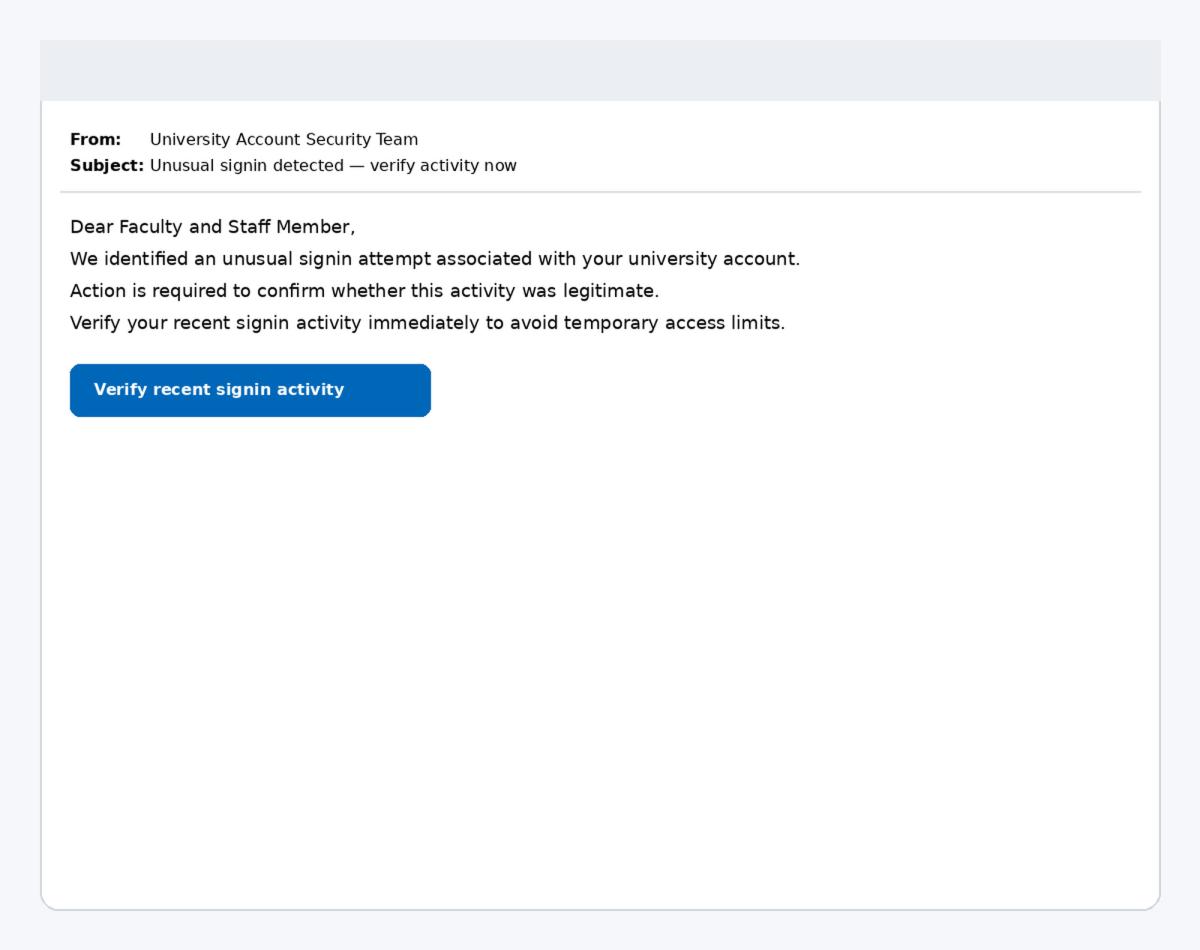
Oops, you clicked on a link in a Phishing Simulation Email. This page explains how to recognize phishing indicators in the email you just received. The message was part of a security awareness simulation.
Pace University will never ask you to verify sign‑ins, passwords, or MFA codes via email.
Email example
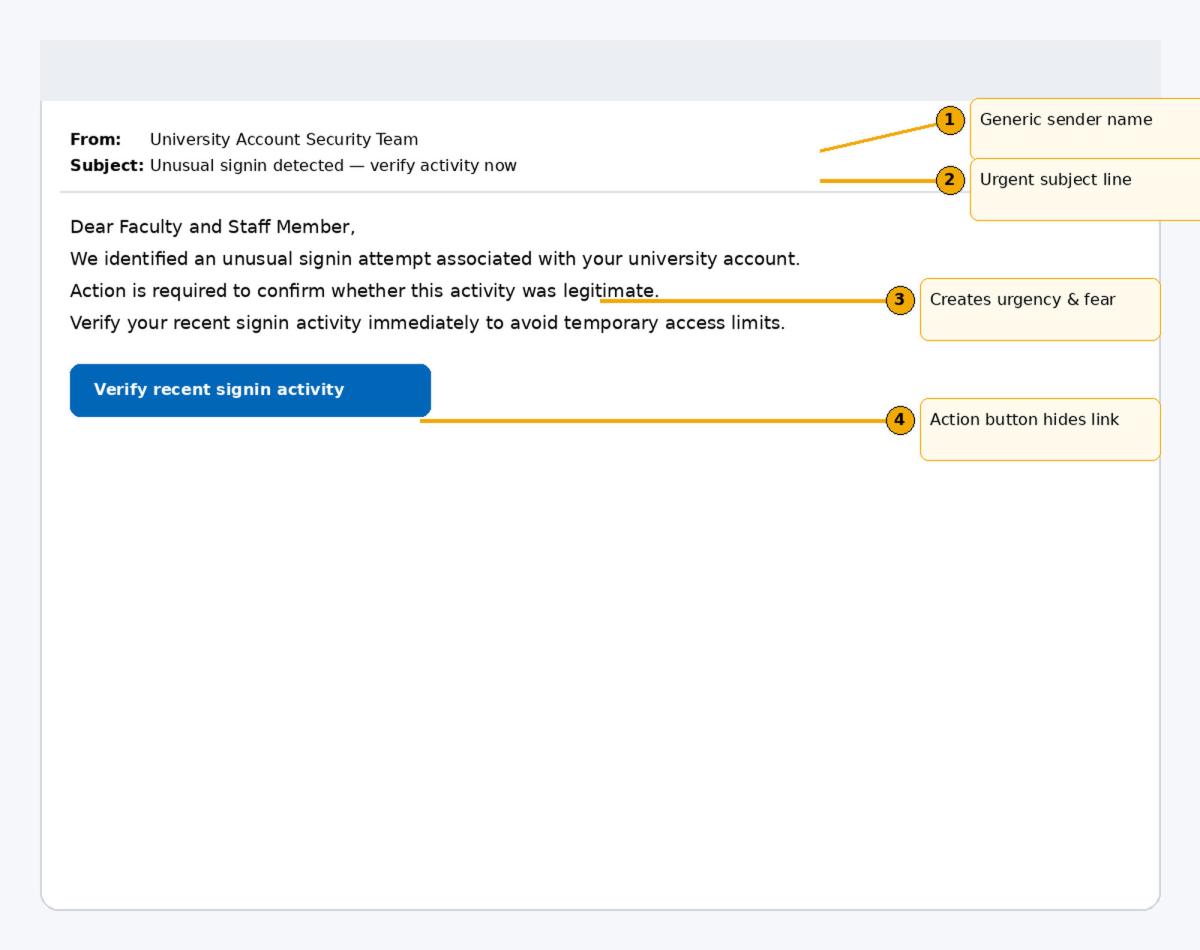
The screenshots below show the simulated email and highlight warning signs.
What to look for
- Urgent language: Messages that pressure you to act immediately.
- Generic greeting or sender: Does not address you by name.
- Fear‑based messaging: Mentions account restrictions or security incidents.
- Action buttons: Buttons can hide the real destination of a link.
How to check sign‑ins safely
- Do not click links or buttons in unexpected security emails.
- Open a new browser window and manually go to Portal.
- Sign in using your Pace credentials.
- From the Pace Portal, review your account activity or access Microsoft 365 services to confirm recent sign‑ins.
- If you still believe something is wrong, contact the ITS Help Desk for assistance.
What to do if you receive a suspicious email
- Do not reply, click links, or open attachments.
- Report the message by forwarding it as an attachment to iso@pace.edu.
- If you already interacted with the message, contact the ITS Help Desk at (914) 773‑3333.
This page is part of Pace University phishing simulation and security awareness training.