Image

Accessible PDF documents ensure that all users, including those with disabilities, can easily read and interact with your content. Meeting accessibility standards such as Section 508 and WCAG guidelines is not only a legal requirement but also enhances the user experience for everyone. To create an ADA-compliant PDF, accessibility must begin in the source document. Whether you are working in Word, PowerPoint, or InDesign, use built-in heading styles, provide alt text for all images and graphics, ensure sufficient color contrast between text and background, and create simple, properly formatted tables. Check the reading order before exporting to make sure content will flow logically for screen readers.
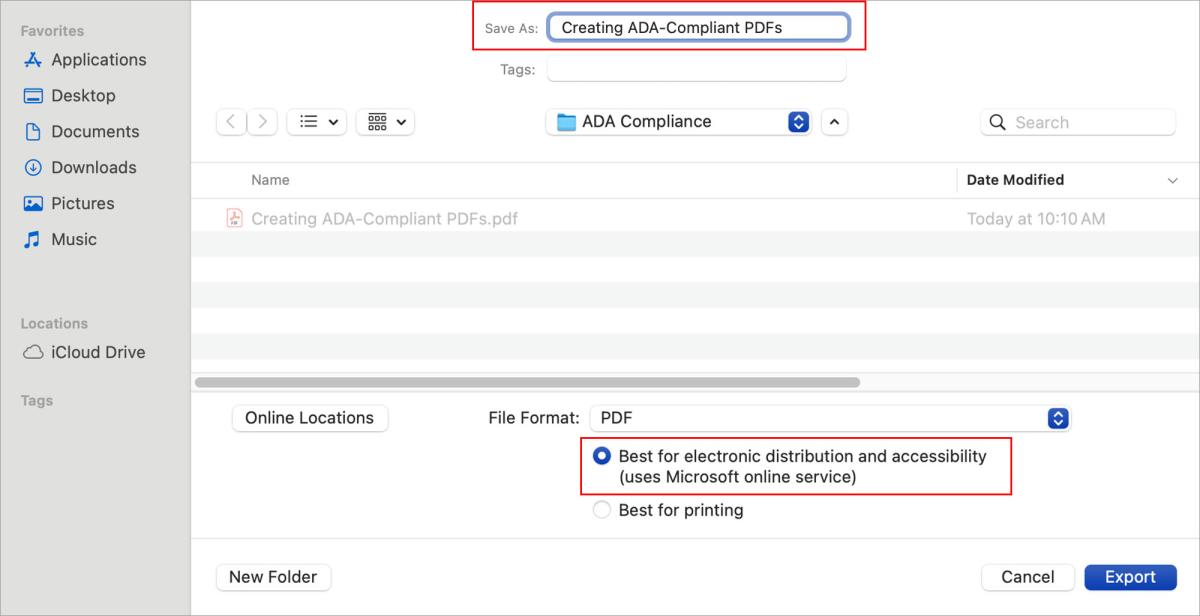
When creating your PDF, always export the file using your program’s “Save As” or “Export” feature rather than printing to PDF, as printing often removes important accessibility features such as tags and alt text. In Microsoft Office, select “Save As PDF” and make sure the option for “Best for electronic distribution and accessibility” is checked.
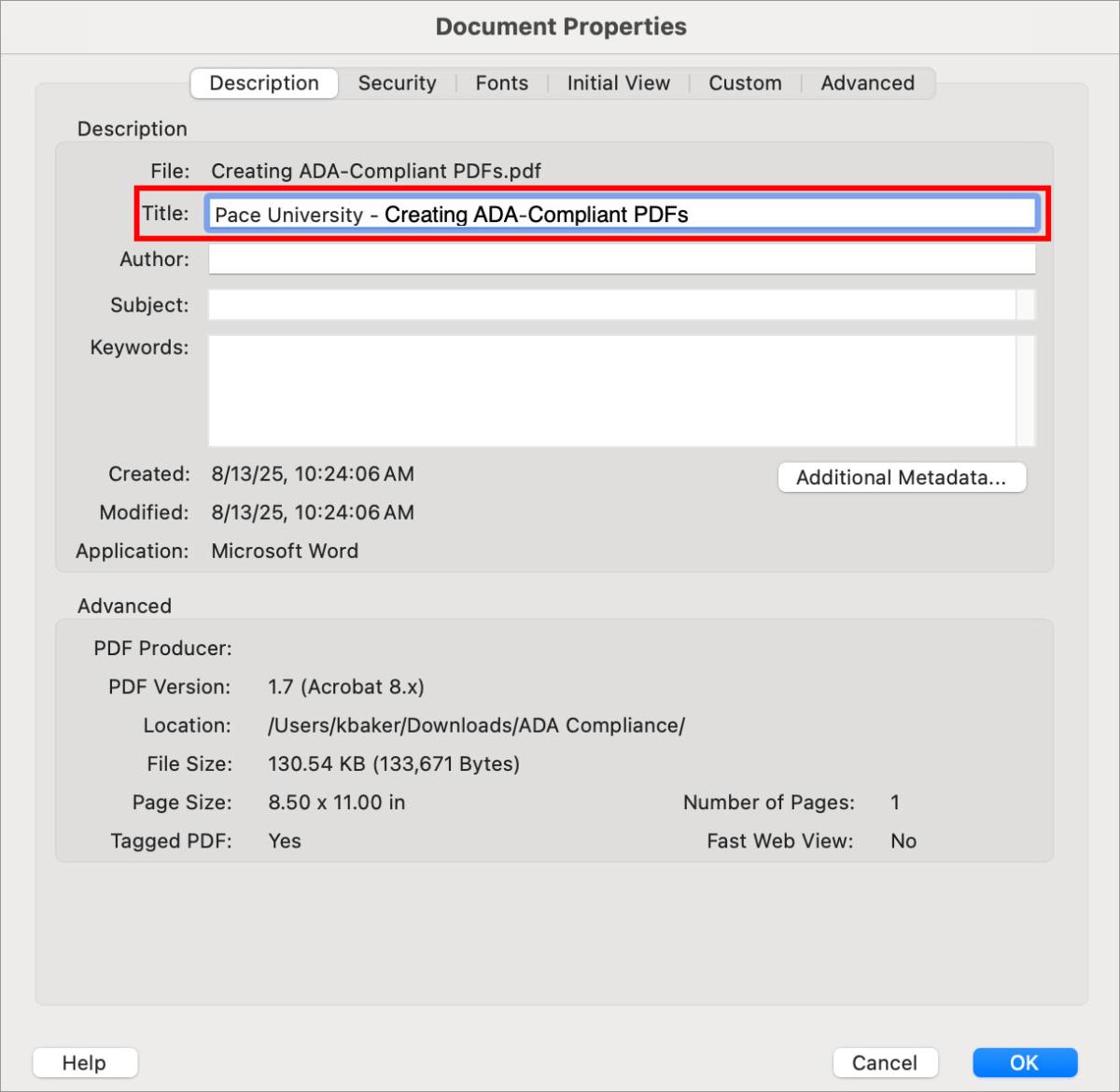
Once the PDF is created, add a meaningful title to the document properties by going to File > Document Properties > Description in Adobe Acrobat. A descriptive title, such as Pace University Pace University - Creating ADA-Compliant PDFs, helps with ADA compliance and improves search engine optimization.
All PDFs should be tagged so that screen readers can navigate the content properly. In Adobe Acrobat Pro, use the Accessibility Tools to add or fix tags, ensuring they reflect the correct structure for headings, paragraphs, lists, and tables, and that all images include alternative text. Alt text should describe the image’s content or function clearly and concisely, while decorative images should be marked as artifacts so they are skipped by assistive technology. It’s also important to verify the reading order by opening the Order panel in Acrobat and adjusting as needed so content is read in a logical sequence.
Links in PDFs should be descriptive rather than generic, using phrases such as “Admissions Calendar” instead of “Click here.” You can update link text and properties directly in Acrobat. Additionally, check that all text meets WCAG 2.1 minimum contrast ratios (4.5:1 for body text) and avoid relying solely on color to convey meaning—use labels or patterns instead.
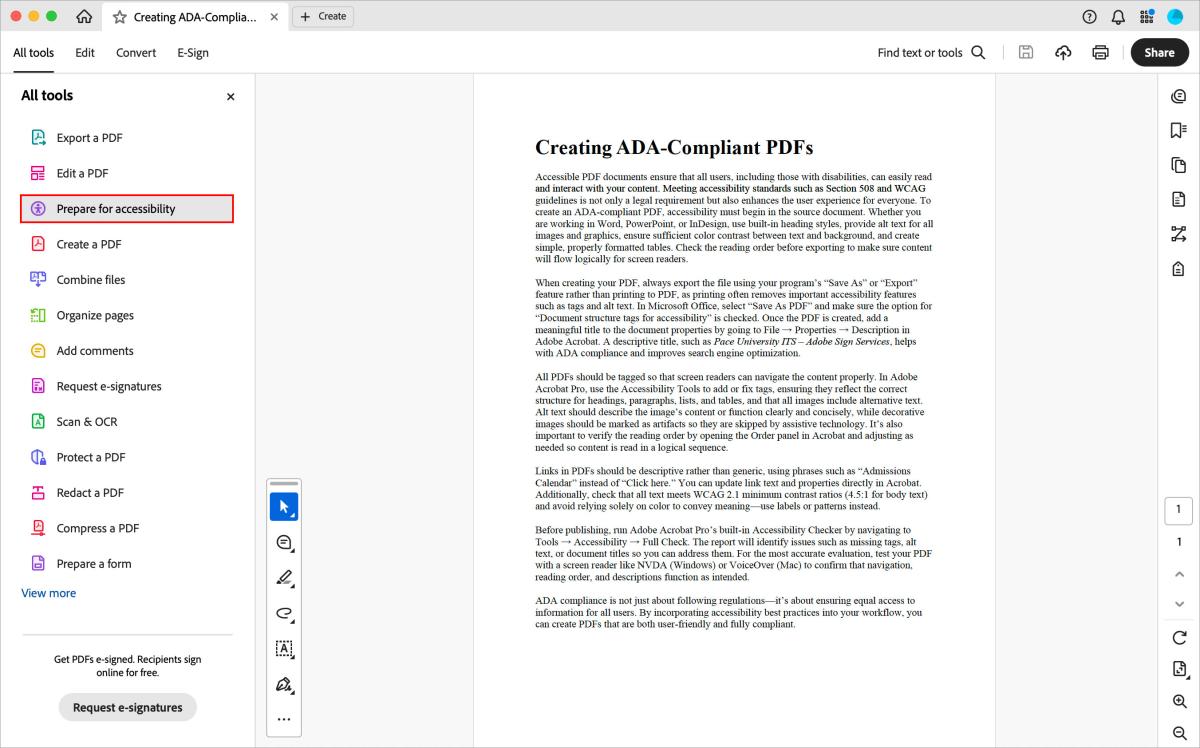
Before publishing, run Adobe Acrobat Pro’s built-in Accessibility Checker by navigating to All Tools > Prepare for Accessibility. The report will identify issues such as missing tags, alt text, or document titles so you can address them. For the most accurate evaluation, test your PDF with a screen reader like NVDA (Windows) or VoiceOver (Mac) to confirm that navigation, reading order, and descriptions function as intended.
ADA compliance is not just about following regulations—it’s about ensuring equal access to information for all users. By incorporating accessibility best practices into your workflow, you can create PDFs that are both user-friendly and fully compliant.