Image

Pace’s editing and style guidelines ensure all content is clear, consistent, and on-brand. Learn how to format dates, times, phone numbers, and emails correctly, follow accessibility best practices, and apply consistent formatting conventions across the site. These standards help keep pace.edu professional, readable, and easy to navigate for every visitor.
To edit content on pace.edu, log in with your Pace username and Drupal-specific password. After signing in, you can use Drupal’s editing tools to update and manage your department or school pages.
Use the following correct date formats:
For date ranges, use this format:
Correct format for single times:
Correct format for time ranges:
Correct formats for combined date and time:
Correct format for date and time ranges:
Correct phone number format:
Avoid listing extension numbers alone. Always use the full phone number for staff or faculty, since callers may be off-campus or using cell phones. Using only an extension can make it difficult to reach the person.
Use "Phone" instead of "Telephone" when listing contact details.
Use “Email” or “email” instead of variations like E-Mail, E-mail, or e-mail.
Do not capitalize any letters in email addresses—Pace University emails never require capital letters.
Correct email format: yourname@pace.edu
If your page includes a single email address within a sentence, it’s acceptable to write phrases like:
These phrases should link to the appropriate department or personal email. It’s also fine to say, for example, “Email John Doe at jdoe@pace.edu.” Avoid using repetitive “Email Us” links on the same page.
For listings with multiple people, include each person’s email like this:
Jane Doe
President
Phone: (914) 999-9999
Email: jdoe@pace.edu
Do not paste full URLs into a block of text.
Correct link format:
Incorrect link format:
Avoid generic link text. Link text that is more specific will help users identify what they are clicking
Correct link text samples:
Incorrect link text samples:
Avoid Repetitive Link text:
For example: If you had 3 event registration links in a section (One for New York City, one for Pleasantville, and one for White Plains), your link text shouldn’t simply say “Register” 3 times in a row. Instead, your link text should say something specific for each link. See below.
Correct link text:
Incorrect link text:
Before you upload a file to the website, your file name should
For example, if you work in ITS and have a PDF titled
rename it before uploading to:
Correct file name
Incorrect file name
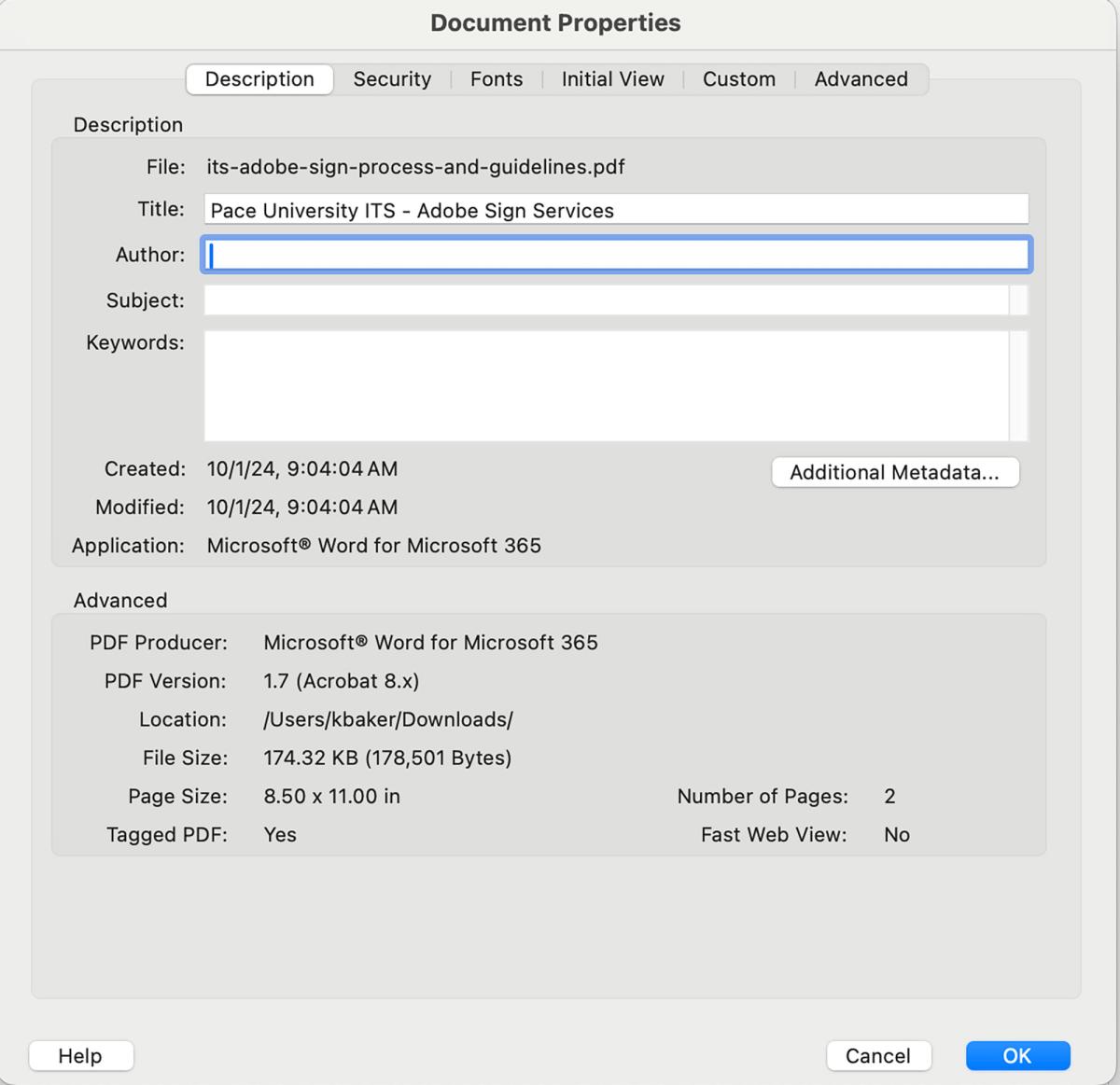
When uploading a PDF, it is mandatory to include a clear and descriptive title in the Acrobat Document Properties. For example, a suitable title might be "Pace University ITS - Adobe Sign Services." This title is important to maintain ADA compliance and improve Google search results.
If you are linking to a file, include the file extension within the link
Correct link text examples for files:
Link fields with a circle on the right edge are auto-fill link fields. When linking to pages within the pace.edu website, type the page name into the field. As you type, matching options will appear below for you to select.
Correct way to do an auto-fill link field:
Start typing the name of the page

Then click the option underneath to fill in the field

Incorrect way to do an auto-fill link field (Unless the link is to an outside source)

Please avoid using URLs in these fields. If URLs change, the links may break. Using the correct page name method ensures your links always point to the right page.
For search engine optimization, it’s important to use full location names rather than abbreviations. Analytics show few users search for “PLV” or “WP.” These guidelines also apply to documents posted on the website.
Quotes with attribution should look like this. To create the space between the quote and the Attribution, you should create two line breaks. On a Mac computer, you can create a line break by using Shift + Return. On a PC, you can create a line break by using Shift + Enter.
—The dash to the left should be an Emdash.
HTML tables are generally not mobile-friendly. If you create a table, ensure it displays fully on a phone screen. If it doesn’t fit, consider alternative layouts like bullet lists or paragraphs to present the content more effectively.
Based on our CSS, unbolded headings will appear as bold text.
While bolded headings will appears as longer and thinner text